Tracking Current Filings
The Current Filings tab within the Reporting Calendar provides a real-time operational view of all filings currently in progress.
Use this section to:
- Monitor filing progress
- Track operational stages
- Review upcoming deadlines
- Identify overdue filings
- Understand ownership and filing activity
Think of this as your primary operational tracking workspace.
Understanding the Filing List
Each row represents a filing currently progressing through the filing lifecycle.
The table is designed to help you quickly identify:
- Filing status
- Operational stage
- Ownership
- Urgency
- Recent activity
Filing Name & AC Indicator
Each filing displays:
- Filing name
- Associated entity (IM / Fund)
If a filing is managed by Addition Compliance, an AC indicator icon will appear next to the filing name.
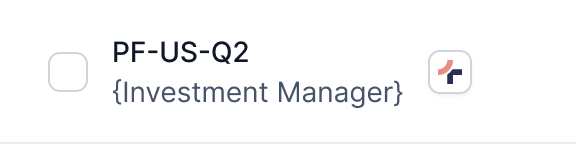
AC Indicator Meaning
| Indicator | Meaning |
|---|---|
| AC Icon Visible | Filing managed by Addition Compliance |
| No AC Icon | Self-managed filing |
This helps distinguish between:
- AC-managed operational workflows
- Independently managed filings
Filing Status & Operational Stages
Each filing progresses through a fixed workflow lifecycle.
Filing Lifecycle
-
Data Collection
-
Preparation
- Preparation
- Internal Review
- Internal Approval
-
Client Approval
-
Submission
Understanding Stage vs Status
Stage
Displays the current operational step within the filing lifecycle.
Status
Indicates the current filing condition.
Examples include:
- In Progress
- Query
- Approved
- Completed
Together, these indicators help you understand exactly what is happening within the filing workflow.
Submission Due Date & Days Left
The Days Left column acts as the primary urgency indicator.
| colour | Meaning | Days |
|---|---|---|
| Red | Filing overdue | < 0 |
| Orange | Deadline approaching (0–6 days remaining) | 0 - 6 |
| Normal | Filing currently on track | > 6 |
Reviewing this column first is recommended when monitoring active filings.
Assignee
Displays the user currently responsible for the filing.
If no user has been assigned:
- An option to assign a team member will be available
Clear ownership helps avoid workflow delays and improves accountability.
Quick View Controls
The Current Filings tab includes quick controls to help segment and refine operational visibility.
Stage Filter
Use the Stage dropdown to filter filings by operational stage.
Example:
- All Stages
- Data Collection
- Preparation
- Client Approval
- Submission

Useful when focusing on a specific operational phase.
Filing Type Segmentation
Use the segmented tabs to separate filing categories.
Available Views:
- All
- AC Managed
- Self-Managed

Helps isolate:
- AC operational workflows
- Internally managed filing activity
Advanced Filters
For deeper filtering and operational analysis, use the Filters panel.
Available Filters
You can filter filings by:
- Reporting Type
- Reporting Jurisdiction
- Investment Manager
- Submission Due Date
Common Use Cases
Filters are especially useful when:
- Working with large filing datasets
- Monitoring specific filing categories
- Reviewing entity-specific activity
- Tracking jurisdiction-specific filings
Actions & Detailed Views
Each filing row contains action icons in the final column.
These actions allow you to access additional filing information without leaving the Current Filings view.
View Details
Opens a detailed side panel containing:
- Filing metadata
- Submission timelines
- Reporting information
- Engagement scope
- Operational details
Use this for deeper filing analysis and operational review.
Recent Activities
Displays the latest updates and workflow activity related to the filing.
This may include:
- Status changes
- Workflow movement
- Operational updates
- Filing actions
Useful for understanding recent progress and tracking workflow activity.
Recommended Workflow
To use the Current Filings tab effectively:
-
Review the Days Left column
- Identify urgent or overdue filings
-
Check the current Stage
- Understand where operational progress is blocked
-
Use the AC Managed / Self-Managed tabs
- Separate workflow ownership clearly
-
Open the Details Panel
- Review filing context before taking action
-
Monitor Recent Activities
- Stay updated on workflow progress
The Current Filings view is best used for:
- Daily operational monitoring
- Filing progress tracking
- Deadline visibility
- Workflow accountability
Next Steps
Now that you understand how to monitor active filings, continue to the Annual View guide to learn how to plan and review filing activity across a longer timeline.