Using the Reporting Calendar
The Reporting Calendar provides a centralized view of filing activity across your organisation, including:
- Ongoing filings
- Upcoming deadlines
- Annual filing visibility
- Self-managed filing schedules
Use this section to:
- Track filing timelines
- Monitor progress across entities
- Plan upcoming compliance activity
- Manage independently tracked filing schedules
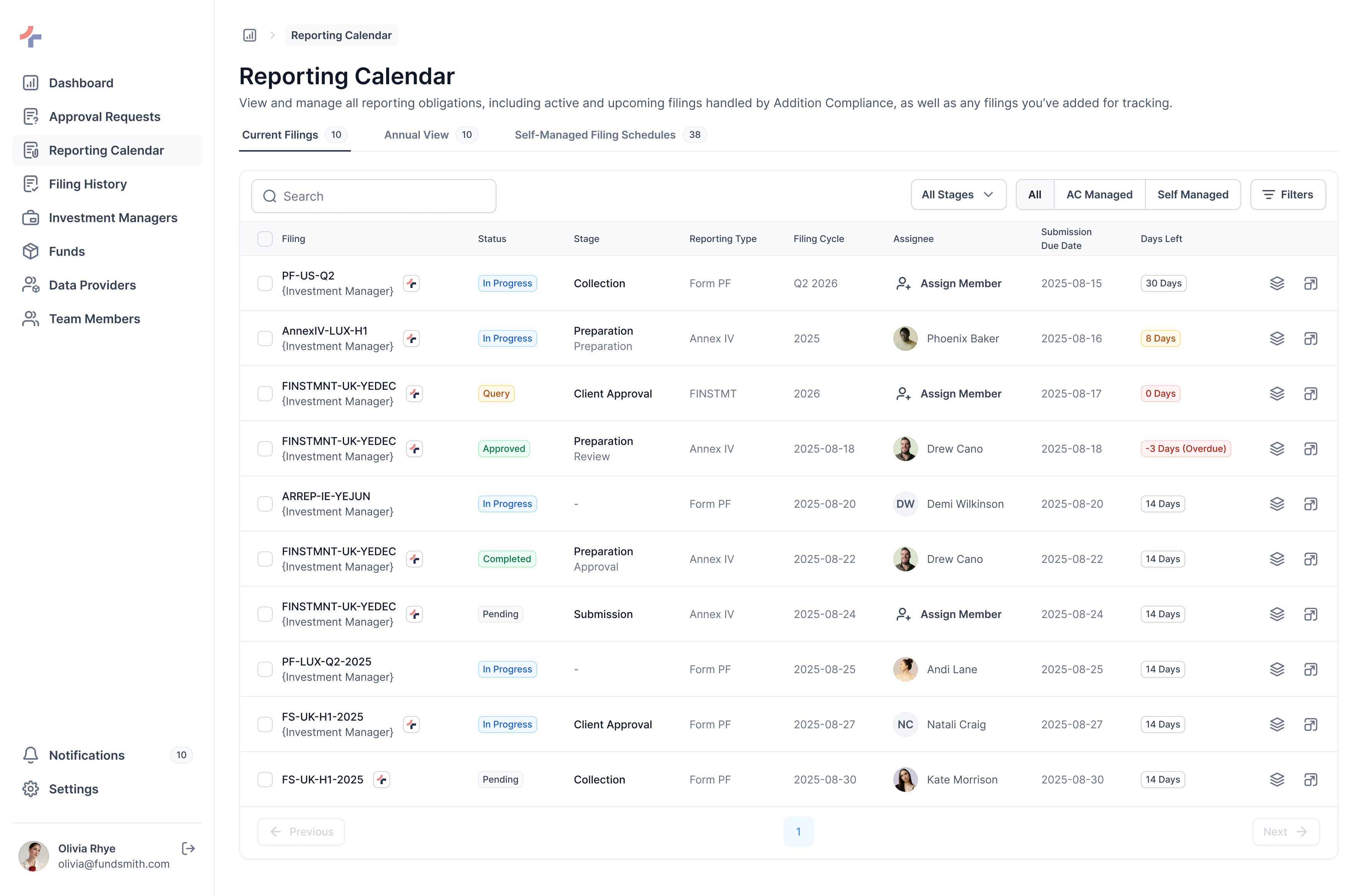
Understanding the Reporting Calendar
The Reporting Calendar is divided into three operational views.
Each tab is designed for a different type of workflow and visibility.
Reporting Calendar Tabs
Current Filings
Displays all filings that are currently active and progressing through the filing lifecycle.
Includes:
- AC-managed filings
- Self-managed filings currently in progress
What You’ll See
- Filing name and associated entity
- Filing status
- Current filing stage
- Assigned owner
- Submission due date
- Days left until deadline
Filing Status Examples
- In Progress
- Query
- Approved
- Completed
Filing Workflow Stages
- Data Collection
- Preparation
- Client Approval
- Submission
Best Used For
- Tracking live filing progress
- Monitoring operational activity
- Identifying delays or bottlenecks
- Reviewing ownership and accountability
This is your primary operational tracking view.
Annual View
Displays filing activity across a rolling 12-month timeline.
Includes:
- Current filings
- Upcoming filings
- AC-managed filings
- Self-managed filings
What You’ll See
- Filing type
- Reporting jurisdiction
- Submission timelines
- Assigned owner
- Upcoming filing schedules
Best Used For
- Planning future workload
- Reviewing annual filing distribution
- Identifying filing-heavy periods
- Preparing for upcoming reporting cycles
This is your planning and forecasting view.
Self-Managed Filing Schedules
Displays filing schedules created and managed directly by your organisation.
These schedules operate independently from AC-managed workflows.
What You Can Do
- Create filing schedules
- Edit existing schedules
- Delete schedules
- Track recurring filings
- Manage custom compliance timelines
Creating a Filing Schedule
You can create schedules using:
- Filing name
- Filing entity (IM / Fund)
- Reporting frequency
- Submission timeline
- Reporting type
- Reporting jurisdiction
Useful for tracking obligations outside Addition Compliance-managed workflows.
Understanding the Filing Table
While each tab may display slightly different columns, the primary operational indicators remain consistent throughout the Reporting Calendar.
Days Left
The Days Left column indicates filing urgency.
| Status | Meaning | Days |
|---|---|---|
| Red | Filing overdue | < 0 |
| Orange | Deadline approaching (1–14 days remaining) | 1 - 14 |
| Normal | Filing currently on track | > 14 |
This should typically be reviewed first when monitoring filings.
Stage & Status
Filings progress through a fixed operational lifecycle:
- Data Collection
- Preparation
- Client Approval
- Submission
Status Examples
- In Progress
- Query
- Approved
- Completed
These indicators help you quickly understand filing progress and workflow state.
Assignee
Displays the user currently responsible for the filing.
If no owner is assigned:
- A quick assignment option will be available
Assigning responsibility helps maintain accountability and operational clarity.
Actions Panel
The final column contains action icons used to open additional filing information.
Selecting an action opens a detailed side panel containing:
- Filing details
- Submission timelines
- Reporting metadata
- Engagement scope
- Workflow-related information
This allows deeper operational review without leaving the Reporting Calendar.
Using Filters
Filters help narrow large filing datasets and improve operational visibility.
Available Filters
You can filter filings using:
- Reporting Type
- Reporting Jurisdiction
- Investment Manager
- Engagement Scope (Annual View only)
- Submission Due Date
Common Filter Use Cases
Use filters when you need to:
- Focus on a specific filing type (e.g. Annex IV)
- Review filings for a specific IM or Fund
- Analyze filings within a date range
- Isolate jurisdiction-specific reporting activity
As filing volume grows, filters become essential for:
- Faster navigation
- Operational monitoring
- Targeted reporting visibility
- Reducing unnecessary scanning
Recommended Workflow
To use the Reporting Calendar effectively:
-
Start with Current Filings
- Monitor active operational work
-
Move to Annual View
- Plan future compliance workload
-
Apply Filters
- Narrow large datasets quickly
-
Use the Actions Panel
- Review filing details without leaving the page
-
Review Self-Managed Schedules
- Track internally managed obligations
Next Steps
Now that you understand how filing visibility and planning work within the Reporting Calendar, continue to the next guide to learn how to monitor active filings in detail.