Understanding Your Dashboard
The Dashboard is your central workspace for monitoring and managing filing activity across your organisation.
It provides a real-time overview of:
- Ongoing filings
- Upcoming deadlines
- Approval requests
- Operational activity managed by Addition Compliance (AC)
Use the Dashboard to quickly understand:
- What requires attention
- Which filings are in progress
- Where delays may exist
- What actions need to be completed
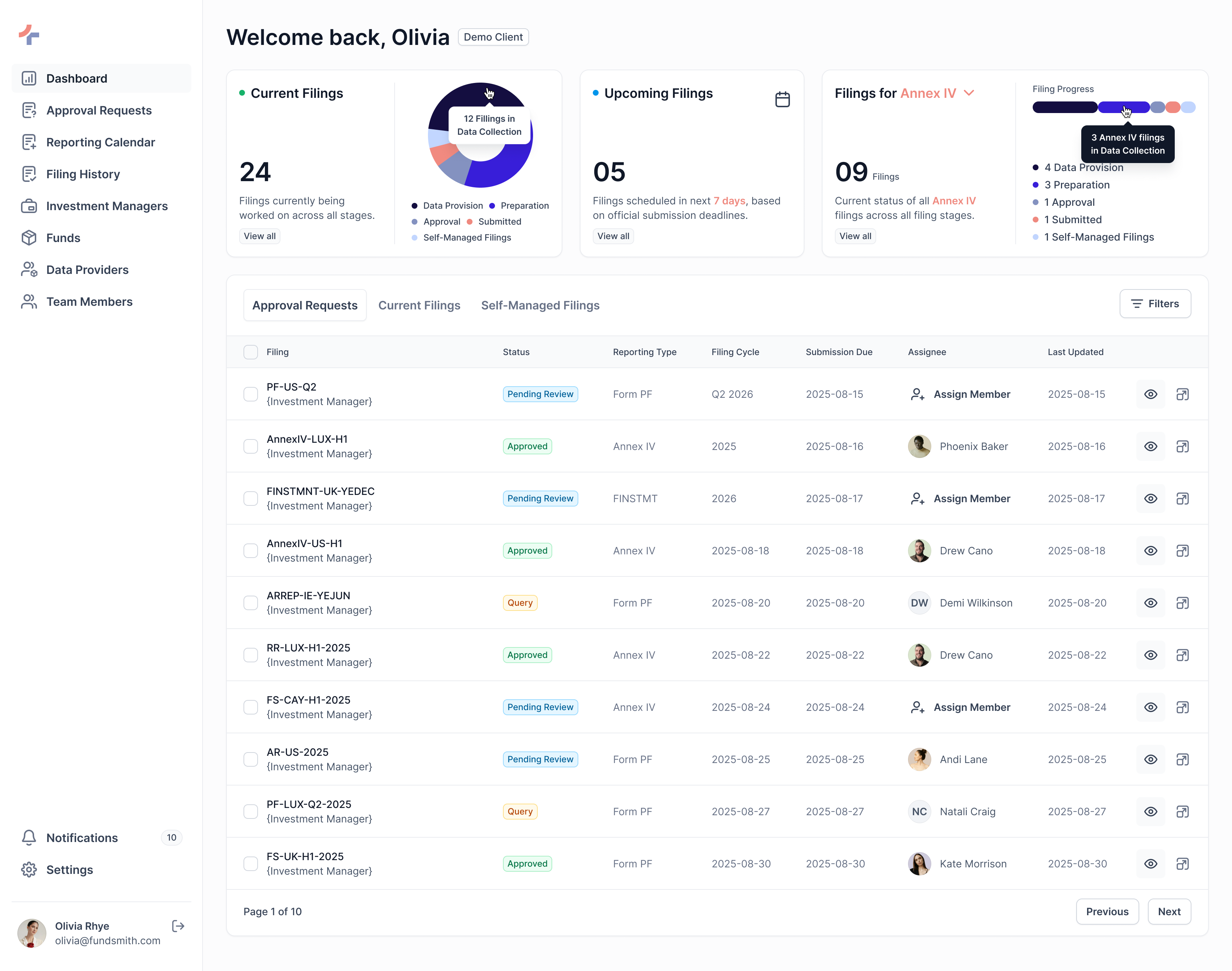
Dashboard Overview Cards
The top overview cards provide quick visibility into your organisation’s compliance activity.
These cards are designed to help you identify:
- Current workload
- Upcoming obligations
- Filing distribution by type
Current Filings
Displays all filings that are currently in progress.
This includes:
- AC-managed filings
- Self-managed filings currently in progress
What You’ll See
- Total number of active filings
- Stage-wise filing distribution:
- Data Collection
- Preparation
- Approval
- Submitted
- Self-Managed Filings
Use this card to understand overall filing progress and operational workload.
Upcoming Filings
Displays filings scheduled for upcoming submission periods.
These filings are shown based on their official submission deadlines.
Date Range Selection
Use the calendar icon in the top-right corner of the card to:
- Adjust the date range
- Filter upcoming filings for specific periods
- View future filing activity more precisely
Useful for planning ahead and avoiding last-minute filing activity.
Filings by Type
Displays filing counts grouped by reporting type (for example: Annex IV).
Also includes a stage-wise breakdown for each filing type.
Use This Card To
- Focus on a specific reporting type
- Understand filing distribution across categories
- Monitor progress for similar filings
View All
Each overview card includes a View All action.
Selecting this option redirects you to a detailed reporting view with filters automatically applied based on the selected card.
Example
- Selecting View All from Upcoming Filings:
Opens the Reporting Calendar with relevant upcoming filing filters pre-applied
This helps you move from high-level visibility into operational detail quickly.
Main Workspace
The lower section of the Dashboard is where most day-to-day operational activity happens.
This area is organized into tabs based on workflow type.
Dashboard Tabs
Approval Requests
Displays filings where your review or approval is required.
These requests are created when documents are shared for client review by the Addition Compliance team.
Common Statuses
- Pending Review
- Query Raised
- Approved
Think of this tab as your active review queue.
Current Filings
Displays all filings currently progressing through the filing lifecycle.
Filing Stages
- Data Collection
- Preparation
- Client Approval
- Submission
Use this tab to monitor live filing progress and operational activity.
Self-Managed Filings
Displays filing schedules and filing cycles managed directly by your organisation.
Includes:
- Active self-managed filings
- Upcoming self-managed schedules
This tab is used for independently tracked compliance workflows outside AC-managed operations.
Understanding the Filing Table
Each row in the table represents a filing or filing cycle.
Days Left
The Days Left column is the primary urgency indicator.
Status Indicators
| colour | Meaning | Days |
|---|---|---|
| Red | Overdue — Immediate action required | < 0 |
| Orange | Approaching deadline (0–6 days remaining) | 0 - 6 |
| Normal | Filing is currently on track | > 6 |
This should usually be the first column you review.
Filing Status (Progress Bar)

The progress bar displays the current stage of the filing lifecycle.
Filing Workflow
- Data Collection
- Preparation
- Client Approval
- Submission
Important Notes
- Progress moves forward sequentially
- Each segment represents completion of a stage
- Delays are easier to identify visually
Use this to quickly understand where filings may be blocked or delayed.
Assignee
Displays the user currently responsible for the filing.
If no user is assigned:
- An option to assign a team member will be available
Assigning ownership helps avoid operational delays and unclear responsibility.
Actions
Rows are not directly clickable.
Use the action icons in the final column to:
- View filing details
- Open related workflows
- Access filing-related documents
This is the primary way to navigate deeper into a filing.
Recommended Workflow
To use the Dashboard effectively:
-
Review the Approval Requests tab first
- Clear pending reviews and approvals
-
Check the Days Left column
- Identify urgent or overdue filings
-
Review filing progress bars
- Spot workflow bottlenecks quickly
-
Assign responsibility where needed
- Ensure filings have clear ownership
Most users primarily operate from:
- Dashboard
- Approval Requests
- Reporting Calendar
These sections contain the majority of day-to-day operational activity.
Next Steps
Continue to the Reporting Calendar guide to learn how to monitor filings across current, annual, and self-managed reporting views.