Navigating the Client Portal
This guide provides a quick overview of the Client Portal layout and explains the primary sections available to your organisation.
The portal is designed to help you:
- Track filing activity
- Monitor compliance progress
- Review approval requests
- Coordinate with the Addition Compliance (AC) team
- Manage operational workflows from a centralized workspace
Understanding the Portal Layout
After logging in, you’ll see the primary navigation menu on the left side of the platform.
This navigation gives you access to:
- Filing workflows
- Approval actions
- organisation structure
- Team visibility
- Account settings
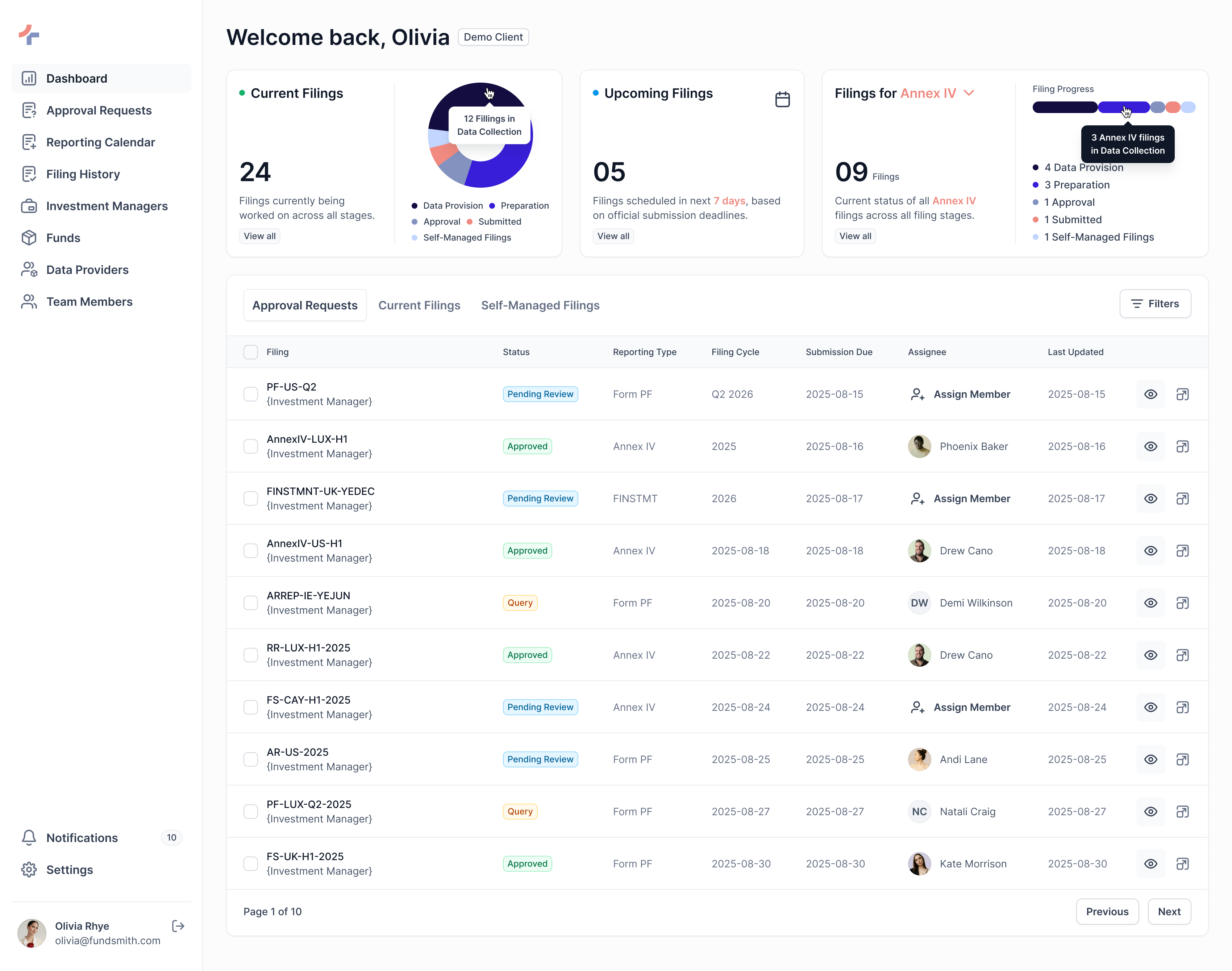
Main Navigation Sections
Dashboard
Your operational overview and starting point within the platform.
Use the Dashboard to:
- Monitor ongoing filings
- View upcoming deadlines
- Track approval requests
- Identify pending actions and operational updates
Best used for day-to-day visibility and quick monitoring.
Approval Requests
View filings and documents that require your review or approval.
This section helps you:
- Review submitted documents
- Approve filings before submission
- Raise queries or request changes
- Track approval-related activity
This is your primary review and decision-making workspace.
Reporting Calendar
Track all filing activity across your organisation.
Includes:
- Current Filings
- Annual View
- Self-Managed Filing Schedules
Use this section to:
- Monitor filing timelines
- Plan upcoming compliance work
- Track filing progress across entities
Best used for operational tracking and planning.
Filing History
Access completed AC-managed filings and historical submission records.
Use this section to:
- Review past filings
- Access submission receipts
- Download completed filing documents
Best used for audit and reference purposes.
Investment Managers (IMs)
View all Investment Managers linked to your organisation.
This section helps you understand:
- Organizational structure
- Entity-level visibility
- Filing relationships across IMs
Funds
Access all funds associated with your Investment Managers.
Use this section to:
- View linked funds
- Understand filing scope
- Navigate entity-level filing activity
Data Providers
View external entities responsible for providing required filing documents and operational data.
These Data Providers are configured and managed by the Addition Compliance team.
Primarily used for filing coordination and document collection workflows.
Team Members
View users from your organisation who participate in filing workflows and operational activities.
Team members may:
- Review filings
- Participate in approval workflows
- Monitor filing activity
- Coordinate with the AC team
Team Members are managed by the Addition Compliance team.
If you need to:
- Add a new user
- Remove access
- Update responsibilities
Contact the Addition Compliance team directly.
Notifications
Stay informed about:
- Filing updates
- Approval requests
- Queries and responses
- Important operational activity
Use this section to quickly identify actions requiring attention.
Profile
Manage your personal account settings and profile information.
This includes:
- Account details
- Login-related settings
- Personal preferences
Most users primarily work within:
- Dashboard
- Approval Requests
- Reporting Calendar
These sections contain the majority of day-to-day operational activity.
Next Steps
Now that you understand the portal structure and navigation, continue to the Dashboard guide to learn how to monitor filings, deadlines, and operational activity.